Quickstart
Not installed yet?
If you haven't installed SightHouse yet, follow the installation process described here first.
Once installed, SightHouse frontend can be run with the following minimal command:
$ sighthouse frontend start -d sqlite:////data/frontend.db
This command will start a frontend server listening on http://localhost:6671 without most of the configuration set. You can fill these configuration options later in the administration panel (see Administration & Setup).
Deploying all the required services with the correct setup can be time-consuming and error-prone. To simplify this process, we provide a Docker Compose file that lets you deploy an instance of the frontend:
services:
  redis:
    image: redis:7
    volumes:
      - ./data/redis:/data

  bsim_postgres:
    image: ghcr.io/quarkslab/sighthouse/ghidra-bsim-postgres:latest
    volumes:
      - ./data/postgres:/home/user/ghidra-data

  sighthouse_frontend:
    image: ghcr.io/quarkslab/sighthouse/sighthouse-frontend:1.0.6
    command: >
      frontend start
      -g /ghidra -d sqlite:////data/frontend.db
      -r local://data
      -w redis://redis:6379/0
      -b postgresql://user@bsim_postgres:5432/bsim
      -f postgresql://user@bsim_postgres:5432/bsim
    ports:
      - "6671:6671"
    volumes:
      - ./data/frontend:/data
    depends_on: [bsim_postgres, redis]
The frontend can then be started with docker compose up -d. The API will be available
on port 6671. A complete example is available here.
No default database
By default, the server does have a database so you will need to run the pipeline to generate one, you can learn how to do it here.
Parameters
Only --database is required to start the frontend. The remaining parameters can
either be passed on the command line or left empty and configured later in the
administration panel.
- database (required): The frontend saves user and program information in a dedicated database, allowing you to query analysis results. Supported database formats include SQLite and PostgreSQL.
- ghidradir: The path to the Ghidra directory that the runner will use to analyze and query signatures from programs.
- repo: A location for storing analyzed files. This can be a local directory on the filesystem or an S3-compatible URL.
- worker-url: The URL of the Redis server used by SightHouse's Celery workers to
perform program analysis. A Redis server is required to start the frontend
(for example,
redis://redis:6379/0). - bsim-url/fidb-url: A list of BSIM/FIDB URLs that analyzers will use to query signatures.
Here's a complete command to start the frontend:
$ sighthouse frontend start -d sqlite:////data/frontend.db \
  -g /ghidra -r local://data -w redis://redis:6379/0 \
  -b postgresql://user@bsim_postgres:5432/bsim \
  -f postgresql://user@bsim_postgres:5432/bsim
User Management
SightHouse employs user-based permission management, requiring you to create a user. You can do this with the following command:
$ sighthouse frontend add-user -d <database> <user> -p <password> [--admin]
You may leave the password option empty, which will generate a random password for the new user.
Administration & Setup
Upon first boot, the server will not have any users (except one you may have added manually via the CLI), so a setup wizard is shown, allowing you to create the first administrator.
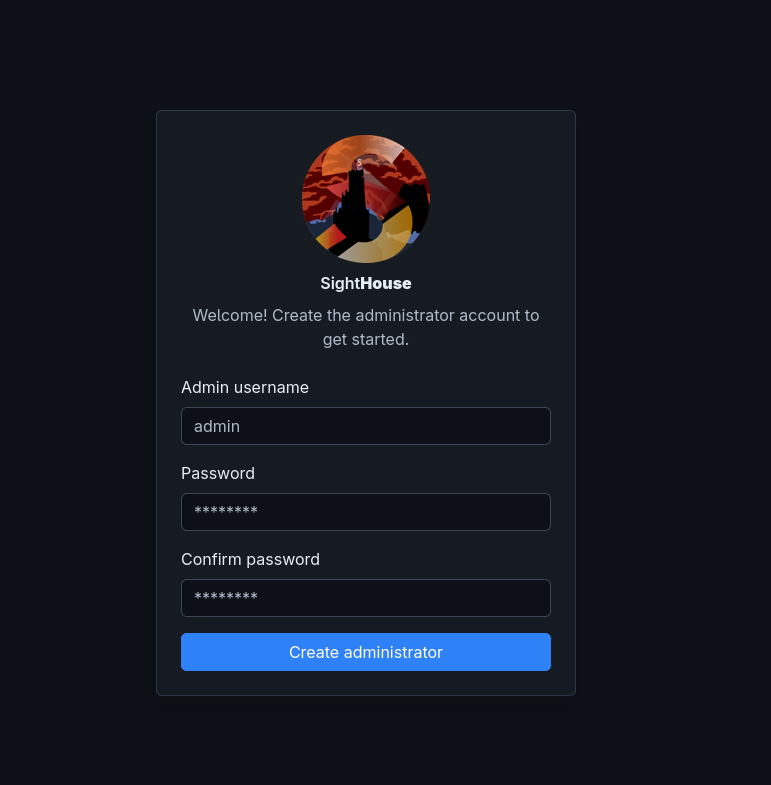
The server can have one or more administrators, and roles can be added or removed dynamically. Once the setup is finished, administrators can access the administration page by logging in first and clicking the Admin button in the top-right corner. It looks like this:
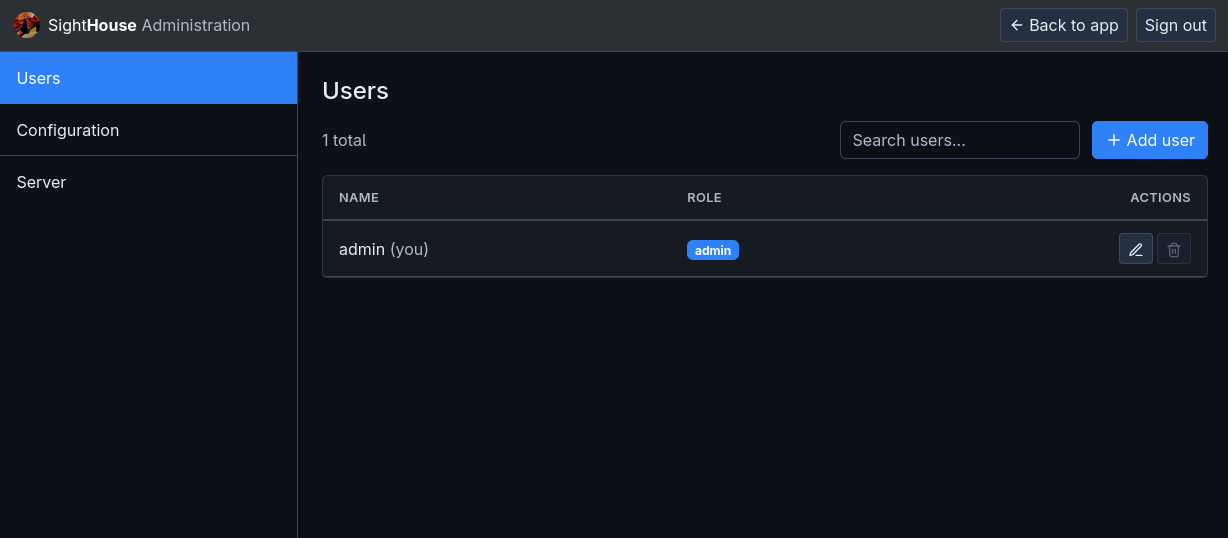
The Users tab lets you manage users from your browser, the same way the CLI does. You can create users or administrators, reset their passwords, or delete users.
You can edit the server configuration from the Configuration tab:
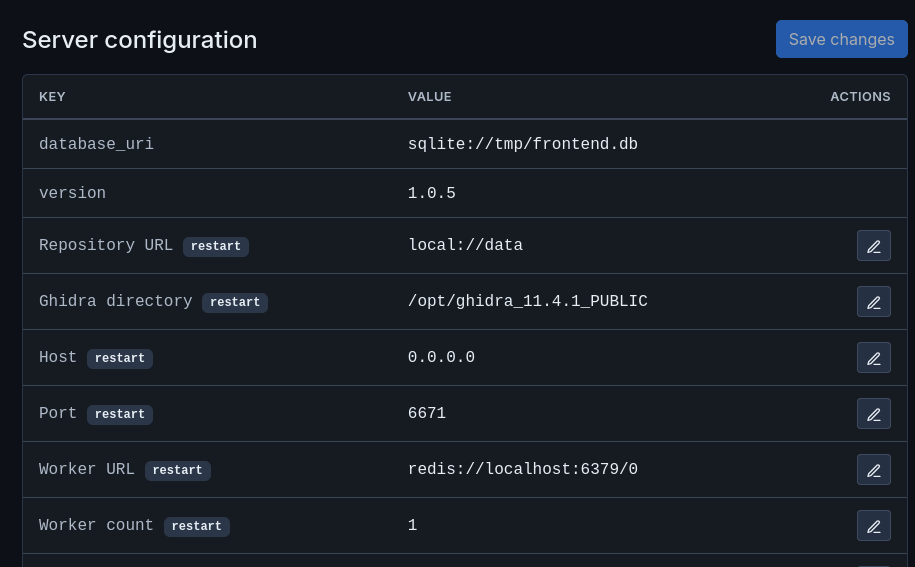
This page lets you modify the server's running configuration, such as the path to Ghidra and the various signature servers. These fields are populated by the CLI when the server starts.
Additional Setup
If you started the server by setting only the database switch, you will have to fill in the empty options, such as the Ghidra directory, worker URL, and BSIM/FIDB signature servers.
Updating some fields may require a server restart, which you can do by going to Server and clicking Restart.