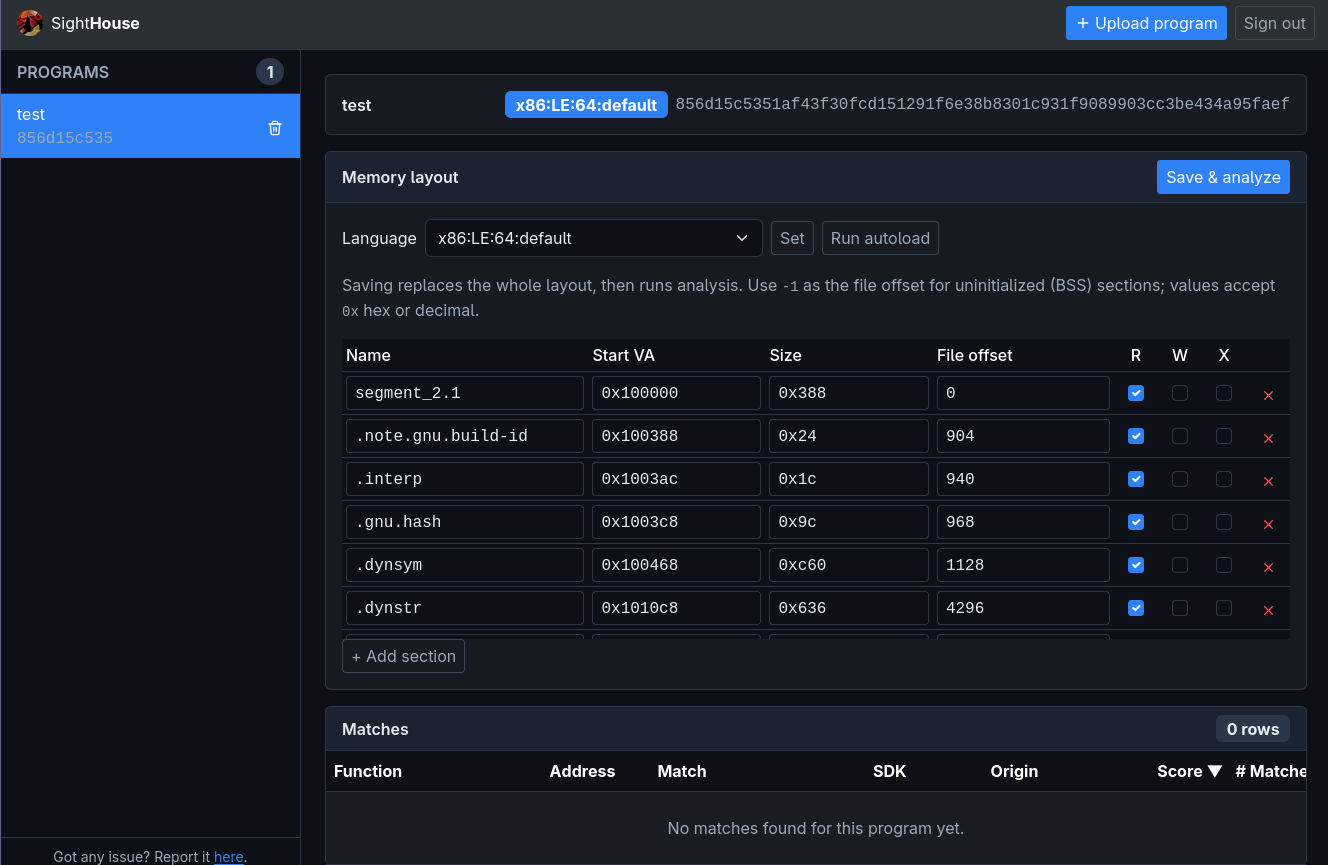
Web Client
SightHouse also features a web interface allowing you to quickly check for matches on a given program. No configuration is needed on the client side, the frontend exposes it on the same URL as the API.
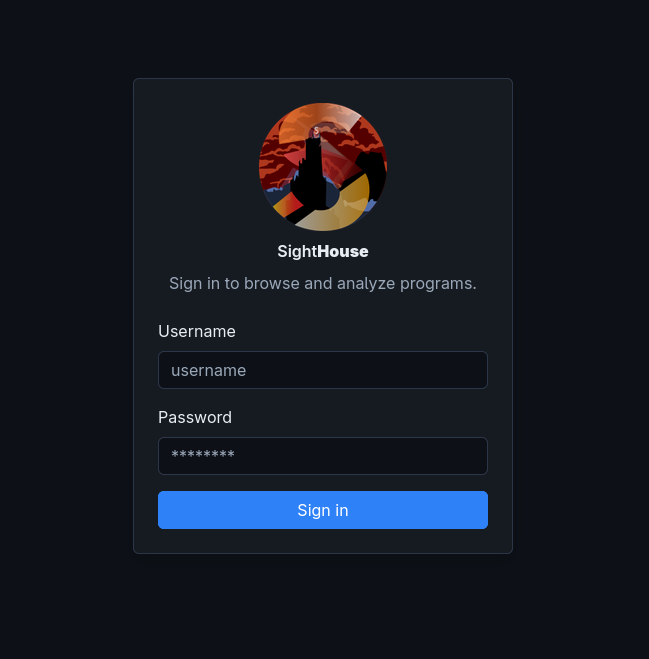
The first step is to go to the server URL, by default http://localhost:6671, and log in using
your credentials.
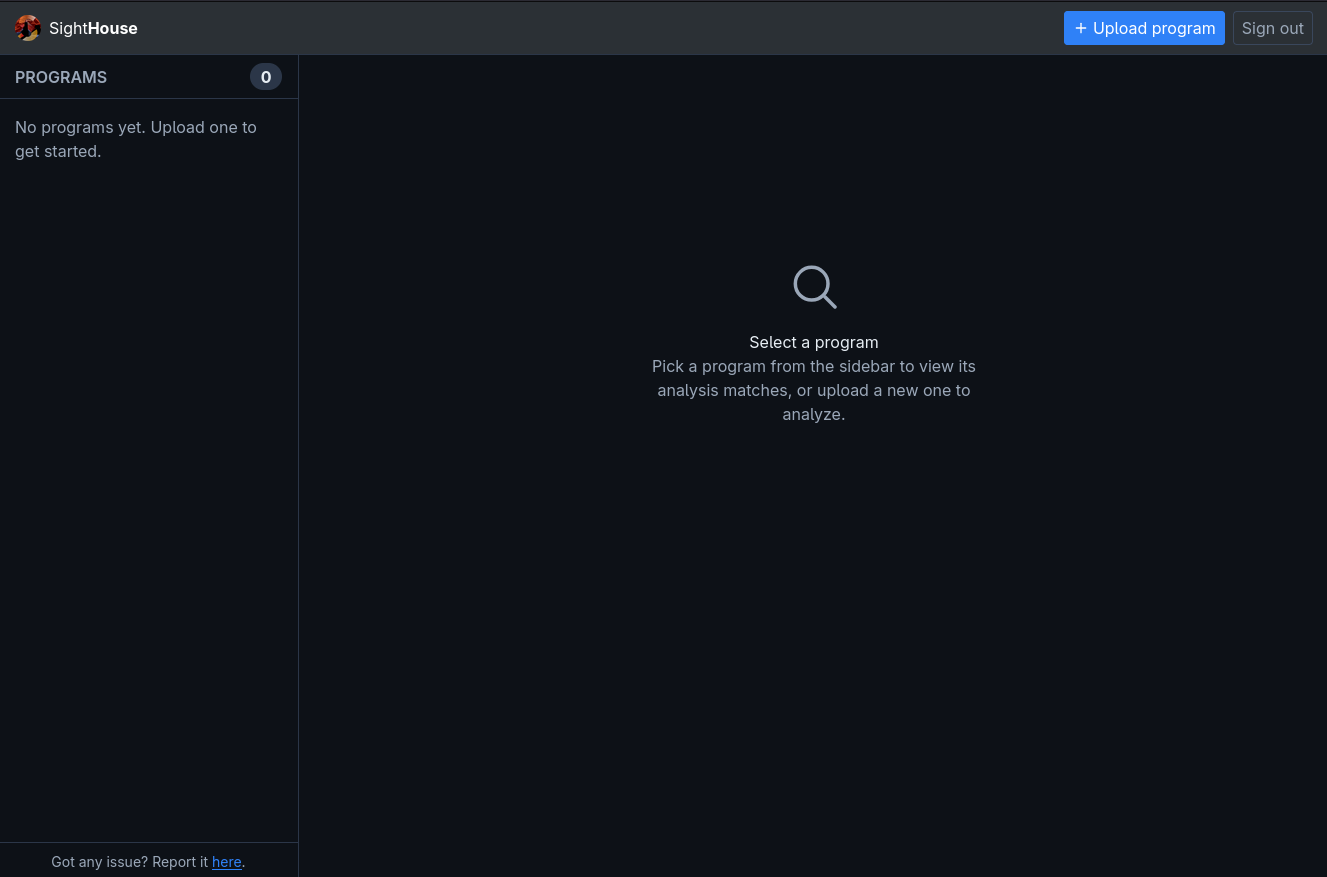
Once you are logged in, you should see the following interface allowing you to check your existing programs as well as add new ones.
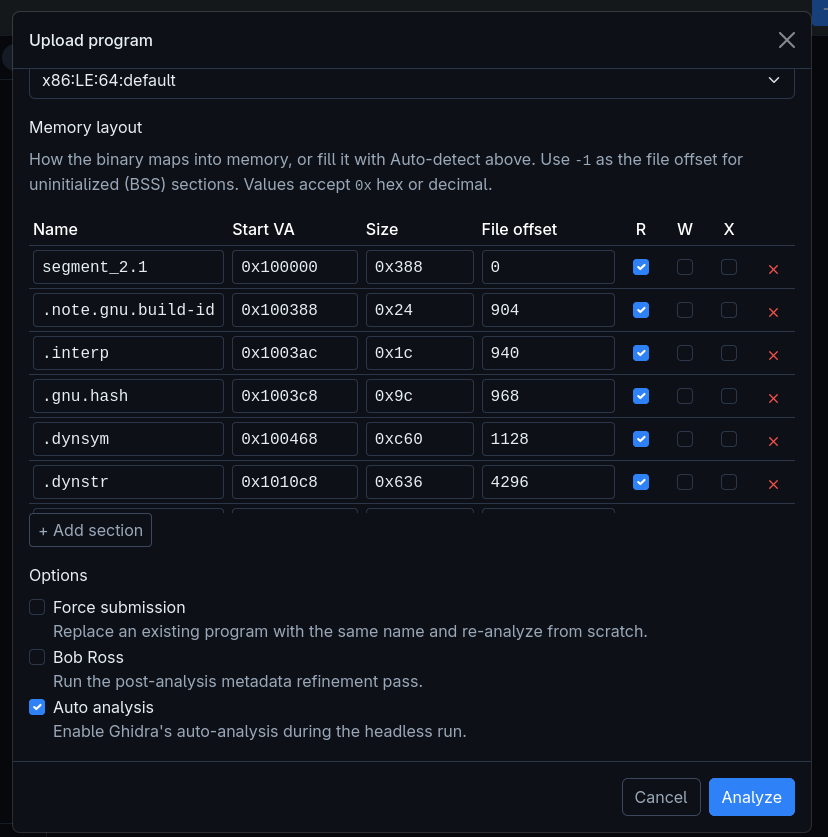
To add a new program, click on Upload program which will open a popup.
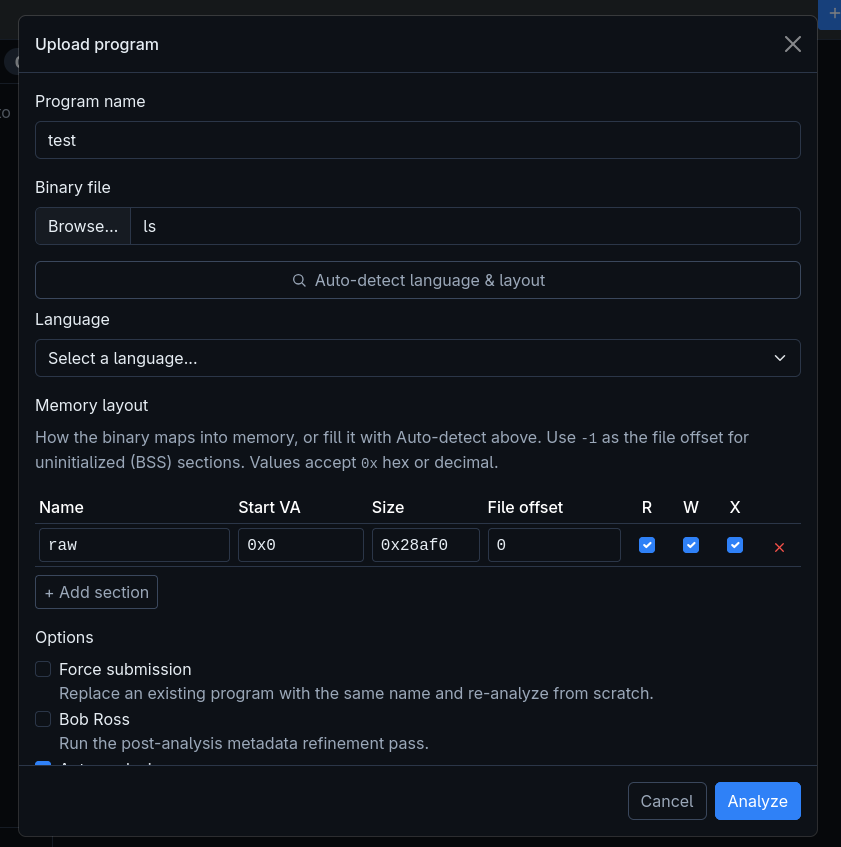
This popup will ask for a program name and to choose a file locally on your system. Once selected, you can either enter the architecture and memory mapping manually (needed for bare metal firmware) or choose the Auto-detect feature.
Auto-detect will send the program to the backend and try to automatically load it using the built-in importers supported by Ghidra like ELF, PE or MachO.
Once that's done, you can select the classic options (common with the other clients) and click on Analyze.
Once the analysis is finished, the result will be available under the matches table.